Audits
An audit in ContributorIQ is a comprehensive analysis of your organization's Git repositories. When you run an audit, ContributorIQ clones each repository, parses the commit history, and generates statistics about contributor activity, code changes, and development patterns. Audits form the foundation for all insights and reports in the platform.
Creating an Audit
To create a new audit, navigate to the Audits page and click Start New Audit. Select the organization you want to analyze. This will be one of the organizations where you've installed the ContributorIQ GitHub App. The system will automatically discover all repositories accessible through the app installation and begin processing them.
Audit processing happens in the background. For organizations with many repositories or extensive commit histories, this process may take several minutes. You can navigate away from the page and return later; the audit will continue processing. The audit status will show "Processing" while work is in progress and "Completed" when all repositories have been analyzed.
What Gets Analyzed
During an audit, ContributorIQ extracts the following information from each repository's Git history:
The system records every commit, including the author name, author email, commit timestamp, lines added, lines deleted, and files changed. This granular data enables detailed analysis of contribution patterns over time.
For each contributor discovered in the commit history, ContributorIQ aggregates statistics across all repositories. This includes total commits, total lines added and deleted, the number of files touched, and which repositories received contributions.
Repository-level statistics capture overall activity, including the total number of contributors, commit frequency, and code velocity trends.
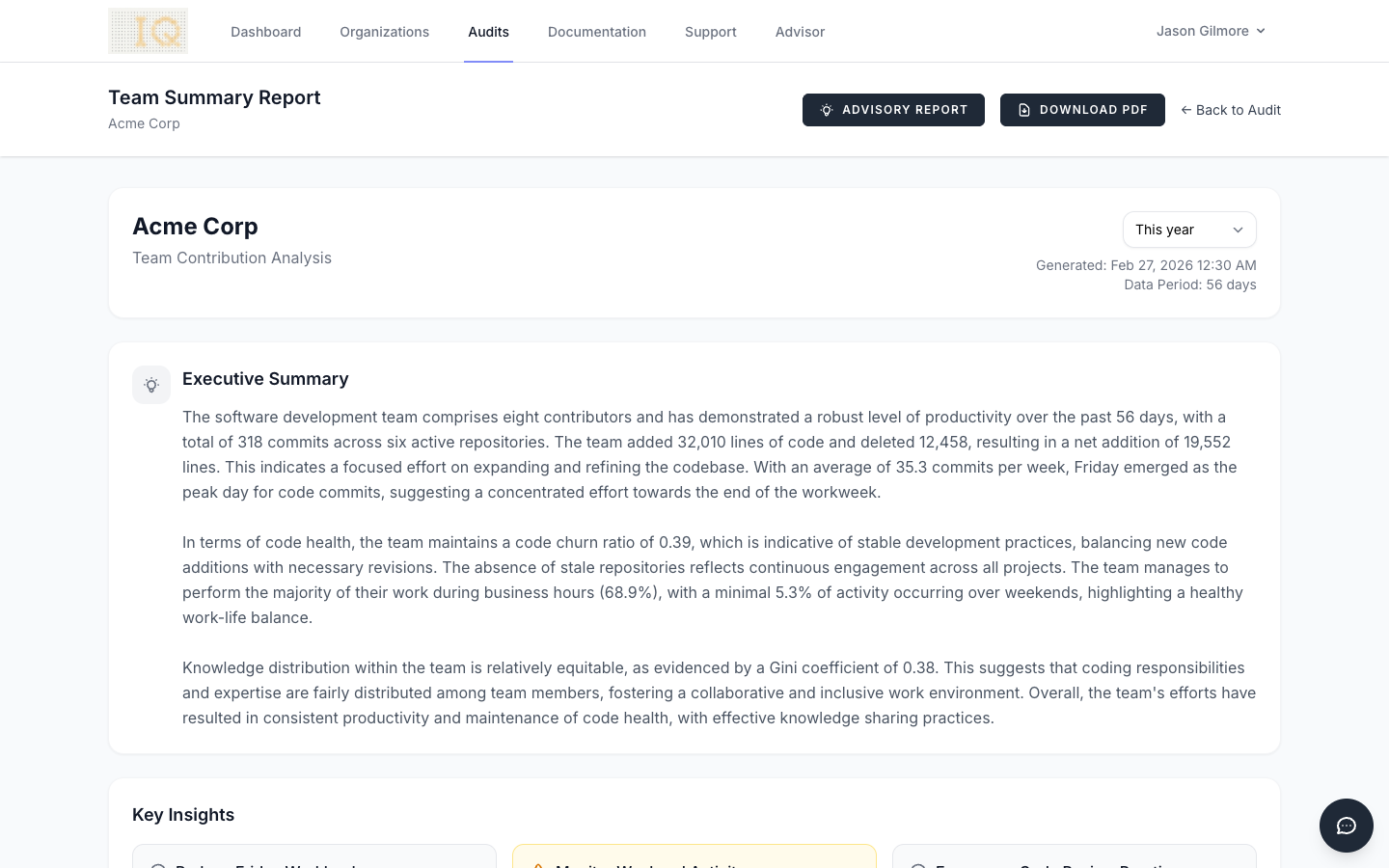
Once an audit completes, the Team Summary report provides a comprehensive overview of contributor activity, code health metrics, and work patterns across all analyzed repositories.
Understanding Contributor Data
Git commits contain author information as configured by each developer's local Git settings. This means the same person may appear multiple times in the data if they've used different names or email addresses across commits. For example, a developer might commit as "Jane Smith" from their work laptop and "jane" from their personal machine, or use different email addresses for different projects.
ContributorIQ automatically groups commits by author name, but the initial grouping may not perfectly represent your actual team structure. This is where the Contributor Identity Manager becomes essential.
Contributor Identity Manager
The Contributor Identity Manager is an organization-level tool that lets you define canonical identities for your team members. Unlike audit-specific settings that would need to be reconfigured each time you run a new audit, identity settings persist at the organization level and automatically apply to all future audits.
Accessing the Identity Manager
From any audit detail page, click the Manage Contributors button in the top right corner. This opens the Contributor Identity Manager for the organization associated with that audit. You can also access it from the organization settings page.
Understanding Identities vs. Contributors
It's important to understand the distinction between identities and contributors. An identity is an organization-level record representing a single person. A contributor is an audit-specific record that links to an identity and contains statistics for that particular audit.
When you configure an identity (by merging duplicates or marking someone as a former employee), those settings automatically propagate to all existing audit contributors linked to that identity and will apply to any new contributors created in future audits.
Merging Duplicate Identities
The most common task in the Identity Manager is merging duplicate entries that represent the same person. To merge identities:
Select two or more identities by clicking the checkbox next to each name. The merge button will become active once you've selected at least two identities.
Click Merge Selected to open the merge dialog. You'll see all selected identities listed with radio buttons.
Choose which identity should be the primary (canonical) identity. This name will be displayed in all reports and statistics. The other identities become aliases that redirect to the primary.
Click Confirm Merge to complete the operation.
After merging, the secondary identities appear nested under the primary identity in the list, showing which aliases have been consolidated. All commits from the merged identities now count toward the primary identity's statistics.
Unmerging Identities
If you merge identities by mistake, you can reverse the operation. Find the primary identity and look for the "Merged identities" section showing the aliases. Click Unmerge next to any alias to restore it as a separate identity.
Unmerging an identity restores its original name and email associations. Historical commits will again be attributed to the unmerged identity rather than the primary.
Managing Employment Status
The Identity Manager allows you to mark contributors as current or former employees. This distinction is important because former employees are typically excluded from active team statistics and reports.
To change an identity's employment status, find the identity in the list and click either "Mark as former" or "Mark as current" depending on their current status. The change takes effect immediately and applies to all audits.
Former employees appear with a "Former" badge next to their name in the identity list. In audit views and reports, you can filter to include or exclude former employees as needed.
How Identity Settings Persist
When you make changes in the Contributor Identity Manager, those changes are stored at the organization level rather than the audit level. This design decision has important implications:
Changes apply retroactively to existing audits. If you merge two identities after running several audits, the merge applies to all of them. Statistics in completed audits will reflect the merged identity.
Changes apply automatically to future audits. When you run a new audit next week or next month, the system will recognize returning contributors by their email addresses and automatically apply your identity configurations. You won't need to re-merge duplicates or re-mark former employees.
New contributors are added automatically. If a future audit discovers commits from an email address the system hasn't seen before, a new identity is created automatically. You only need to manage identities when duplicates appear or team composition changes.
Email-Based Matching
The Identity Manager uses email addresses as the primary key for matching contributors across audits. When a commit is processed, the system checks whether the author's email address matches any existing identity. If a match is found, the commit is attributed to that identity. If no match exists, a new identity is created.
This email-based matching means that merging identities effectively combines their email address lists. If you merge "Jane Smith" ([email protected]) with "jane" ([email protected]), future commits from either email address will be attributed to the merged identity.
Best Practices
Run your first audit before extensively configuring identities. The initial audit will surface all the contributor names and email variations in your repositories, giving you a complete picture of what needs to be merged.
Review the identity list after each audit to catch new duplicates. As team members join or change their Git configurations, new variations may appear.
Mark departing employees as "former" promptly. This keeps your active team statistics accurate and ensures reports reflect your current team composition.
Use descriptive canonical names. When merging identities, choose the name that will be most recognizable to stakeholders reviewing reports. Full names with proper capitalization typically work best.
Audit History
ContributorIQ maintains a complete history of all audits you've run. Each audit is a snapshot in time, preserving the state of your repositories and contributor data as of when the audit was executed.
You can view and compare historical audits to track how your team's activity has changed over time. Older audits remain accessible and their data remains intact even as you modify identity settings. The identity changes apply retrospectively to display updated contributor attributions.
Deleting Audits
If you no longer need an audit's data, you can delete it from the audit detail page. Deleting an audit removes all associated statistics, commits, and contributor records for that specific audit. Identity records at the organization level are not affected by audit deletion.
You can also delete cached repository data separately from audit statistics. This is useful if you want to reclaim disk space without losing your processed statistics.
Scheduling Regular Audits
For teams that want to track contribution patterns over time, consider running audits on a regular schedule, such as weekly or monthly, depending on your needs. Each audit captures a fresh snapshot of your repositories, allowing you to generate time-bounded reports and track trends.
Because identity settings persist across audits, you won't need to reconfigure contributors each time. The system remembers your merges and employment status settings, applying them automatically to each new audit.